In this stage, you will learn how to configure intelligent workflows that start on their own. This will allow you to ensure every new collaborator has their tools from day one, eliminating human error and saving time.
Step 1: Permissions to configure automations
To be able to configure Automation Templates, you must have Request modification permission and Asset Management permission.
Path:
⚙️> Users and Profiles
You must have the Request modification and Asset Management permissions active:
Step 2: Event and action logic
🗓️Event:situation or change that occurs on the platform and serves as thetriggerto automatically start a request. In the Asset Management module, the key event is:
- When a Collaborator is created (Onboarding):Ideal for assigning equipment.
⚙️Action:task or process that runs automatically when theEventoccurs. In the Asset Management module, the key action is:
- Request asset assignment to a collaborator:Creates an asset assignment order directly for the new collaborator without requiring manual intervention.
Step 3: Template Configuration
🔗Administrative > Collaborators > Requests
Select the Configuration option
Now select the "Create template" button or the name of the Flexible template you wish to modify:
Complete/Edit the form to create the request template. Don't forget to select that it is of type “Flexible”
Now, in the template settings, select start by “Platform event” and choose the event “when a collaborator is created” (which is the event associated with a collaborator's onboarding)
💡If you want, you can further segment this automation using specific rules. In the modal, you can select with an advanced filter who this automation would apply to. In the example, the automation would be for all analysts in the Administration and Finance area.
Now, click at the end of the flexible flow, click the "Add action" button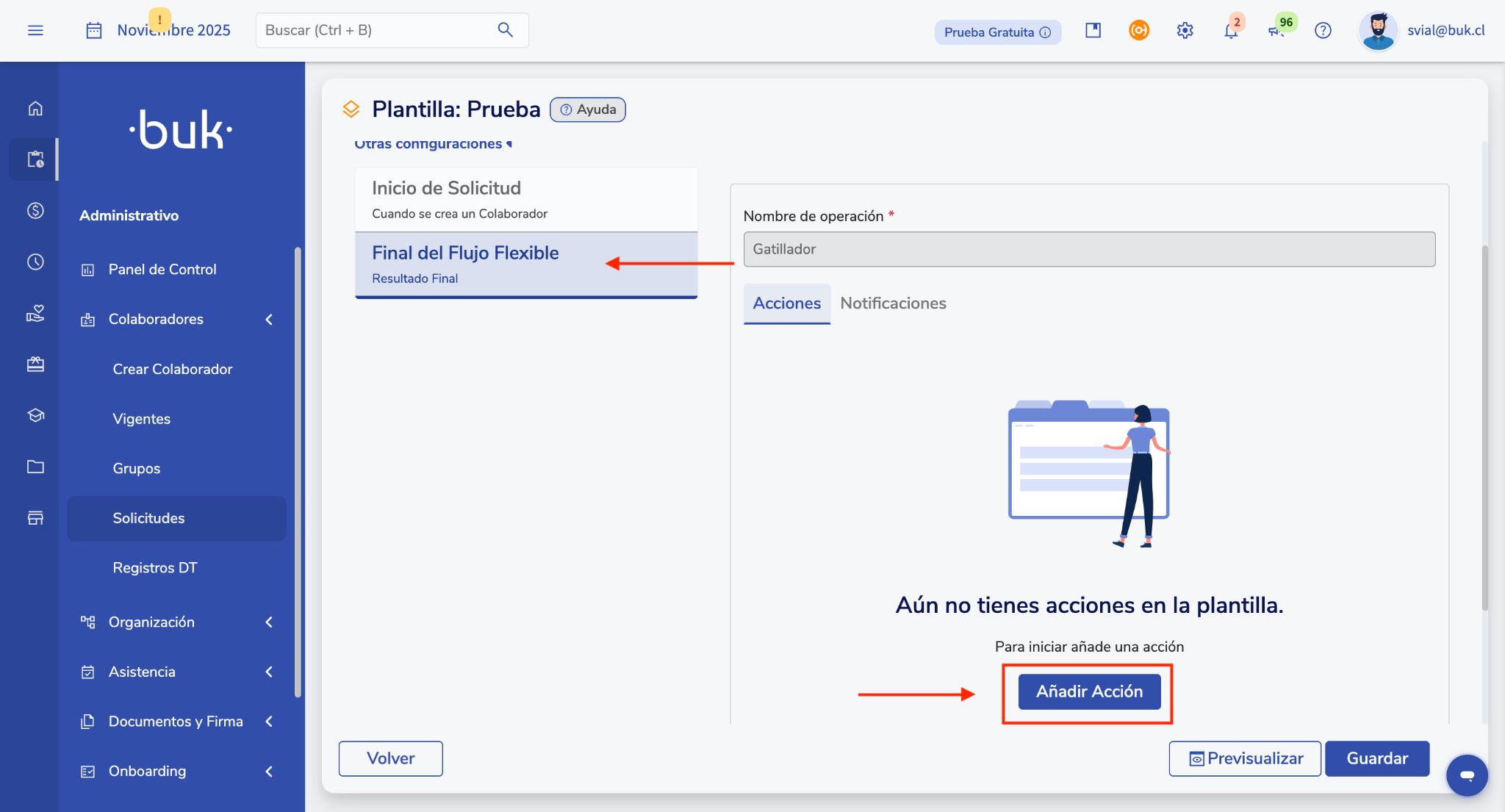
When you click, a modal will open where you must select the action to perform “Asset request”
To configure the action, you must complete the form fields below
Requested for:
- If you want the asset assignment request to be for the collaborator who is onboarded, choose the option “Event Collaborator”
- If you want the asset assignment request to be for the supervisor of the collaborator who is onboarded, choose the option “Supervisor of the Event Collaborator”
Then, select the days to assign, the deadline the Asset Management admin would have to assign the assets from the moment the collaborator's onboarding triggers the assignment request.
Finally, select the category and product(s) you want to request.
💡Remember that your template must be in “Active” status for the automation to work:
If you want to learn more about request configuration and other automations, go to thisarticlethat contains more information.
Remember, if you need help you can contact us through our support channels.
Chat | Phone | Email.
We're happy to help!
🤖 This article was translated using artificial intelligence. View original article.